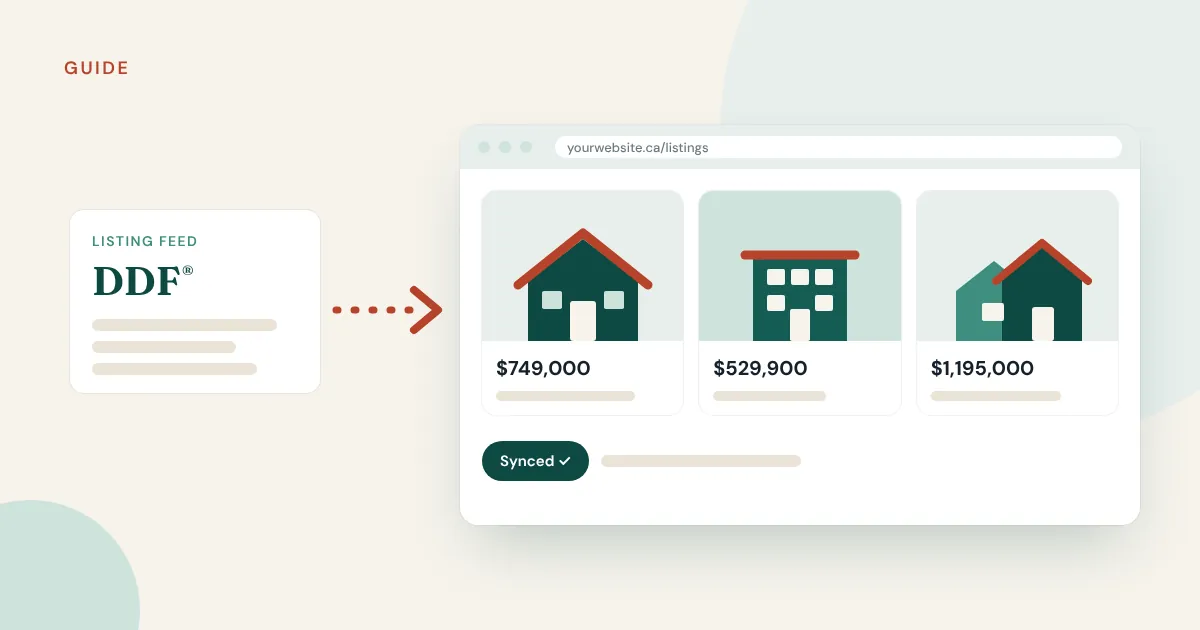
If you’re a REALTOR® in Canada with a WordPress website, adding live MLS® listings is one of the best upgrades you can make. Buyers stay on your site instead of leaving for a portal, every listing becomes a page that can show up in Google, and you stop copying property details by hand.
This guide walks you through how to add MLS® listings to your WordPress website using CREA’s Data Distribution Facility (DDF®), the national listing feed available to REALTORS® across Canada.
What you need before you start
- A CREA membership. DDF® feeds are created by REALTORS® through their member tools.
- A WordPress website on your own domain. Self-hosted WordPress (not WordPress.com’s free plan) so you can install plugins.
- Your brokerage’s participation. To show other brokerages’ listings, your brokerage has to take part in the National Shared Pool. If you only want your own listings, a Member Website Feed is enough.
- A WordPress plugin that imports DDF® listings. This is the piece that turns the feed into real pages on your site.
Step 1: Choose the right DDF® feed type
According to REALTOR.ca, there are two main kinds of feeds:
- National Shared Pool: listings from participating brokerages across Canada (Quebec and Manitoba boards don’t currently participate). Best if you want buyers to search your whole market on your website.
- Member Website Feed: just your own listings, or all of your brokerage’s listings. Best for a simple “My Listings” page.
Most agents choose the National Shared Pool and filter it down to their area, so the site shows local listings only. A feed with every listing in Canada would slow your site down and isn’t useful to local buyers.
Step 2: Create your data feed in the CREA member tools
Log in to your REALTOR® member tools, open the DDF® section and choose Add a Data Feed. The wizard asks you to:
- Pick the feed type (National Shared Pool or Member Website Feed).
- Say who will operate the feed.
- Enter the URL of the website that will use it.
- Add filters, such as boards, cities, postal codes, property types, price range, or sale vs. rent.
- Review the summary, read the terms of use and save.
Once the feed is saved, you get the connection details your plugin needs. Keep them private, like a password.
Tip: If the National Shared Pool option doesn’t appear, your brokerage may not have opted in yet. Ask your broker of record.
Step 3: Install a DDF® plugin on WordPress
There are two ways WordPress tools show MLS® listings:
- Embedded (iframe) widgets display listings that live on someone else’s server. They’re quick to set up, but Google sees them as another website’s content, not yours.
- Imported listings are saved into your WordPress database and published as normal pages on your domain. This is the approach that helps your SEO.
Realtie is a WordPress plugin built for Canadian agents. It connects to your CREA DDF® feed, imports listings as real, indexable pages, and keeps them up to date as the feed changes.
Step 4: Connect the feed and map your fields
In your plugin settings, paste in the feed connection details and test the connection. Then check the field mapping: price, bedrooms, bathrooms, square footage, photos, address and description should land in the right places on your listing page.
With Realtie, most fields are mapped automatically, and you can adjust anything that looks off before the first import.
Step 5: Run your first import and turn on automatic sync
Start the first import and let it finish. Depending on how many listings your filters include, this can take a few minutes or longer.
Then turn on scheduled sync. CREA says listing data on DDF® is updated an average of 46 times a day, so automatic sync matters. Price changes, new photos and status changes should reach your website without you doing anything, and listings that come off the market should disappear from your site.
Step 6: Make your listing pages work for you
Once listings are live:
- Add a search bar to your home page so visitors can start searching right away.
- Create area pages (for example, “Homes for sale in Kelowna”) that show filtered listings plus a paragraph about the neighbourhood. These pages often rank well for local searches.
- Add a contact form to each listing page so questions come to you, not a portal.
- Use an SEO plugin such as Yoast or Rank Math to control titles and descriptions.
- Follow CREA’s DDF® rules for how listings and trademarks are displayed.
Common problems (and quick fixes)
- No listings after import: check your filters. A postal code or property type filter that’s too narrow can return zero results.
- Only commercial listings showing: your feed filters may exclude residential property types. Edit the feed in your member tools.
- Old listings still showing: make sure scheduled sync is on and running.
- Site is slow: narrow the feed to your service area instead of all of Canada.
FAQ
Is the CREA DDF® feed free for REALTORS®?
CREA has said data feeds are and will always be free to members. You may still pay for the WordPress plugin or website service that displays the listings.
Can I show listings from other brokerages on my website?
Yes, through the National Shared Pool, as long as your brokerage participates and the listing brokerages have opted in.
Will MLS® listings help my website rank on Google?
They can, when listings are imported as pages on your own domain rather than embedded from another site. Read our guide on real estate website SEO in Canada for more.
Do I need a developer to do this?
Not usually. If you can install a WordPress plugin, you can connect a DDF® feed. If you’d like help, our Plugin + Support plan includes help connecting your feed and mapping fields.
Ready to add listings to your site?
Realtie imports CREA DDF® listings into WordPress as real pages on your domain and keeps them in sync automatically. See how it works or start your free trial.
The trademarks MLS®, Multiple Listing Service® and the associated logos are owned by The Canadian Real Estate Association (CREA). The trademarks REALTOR®, REALTORS® and the REALTOR® logo are controlled by CREA. DDF® is a trademark owned by CREA.